

What Is App2App?
App2App is an integration profile in which a payment transaction is initiated from the partner's application and completed in the Ödeal application.
The Ödeal application is launched from the partner's mobile application, and once the payment is completed, the payment result is sent back to the partner's application.
How It Works
The basket prepared in the partner's application only needs to open the Ödeal mobile application with the unique basket reference code. This can be provided from the partner's application via Android or Kotlin code samples.
Using the unique basket reference code sent to Ödeal, Ödeal makes a request to the service opened by the partner in order to retrieve the basket details. Based on the retrieved basket details, the payment transaction is carried out on the device, and the result is communicated back by Ödeal through the feedback services.
Important Steps Before You Start
Configuration Definition
The configuration service is the service through which the URL information for the endpoints the partner is expected to expose is communicated to Ödeal as part of the integration. It is the request used to manage the information required for the integration.
IMPORTANT NOTE
The configuration definition is done only once. It matters because the parameters must be defined for transactions to be processed successfully.
basketUrl: The basketUrl value is the URL from which the basket information will be retrieved. This can be defined via the configuration service. In the APP2APP profile, this definition must be made so that basket details can be retrieved from the partner.
IntentUrl: The IntentUrl value is the URL used to notify the partner's application of a successful or failed payment. This can be defined via the configuration service. In the APP2APP profile, this definition must be made so that the partner's application can be notified of payment success or failure.
Process Steps
Payment Flow
Basket Creation The transaction is initiated from the partner's application, i.e., the basket is created.
Waking Up the Ödeal Application For the payment step, the partner's application sends a collection request to the Ödeal application along with the basket ID (basketRefCode).
Sending the Basket Reference The Ödeal application, once launched, sends the basket reference code to the Ödeal backend.
Retrieving Basket Details Ödeal sends a request to the partner's backend, via the basket service exposed by the partner, to retrieve the basket details using the basket reference code.
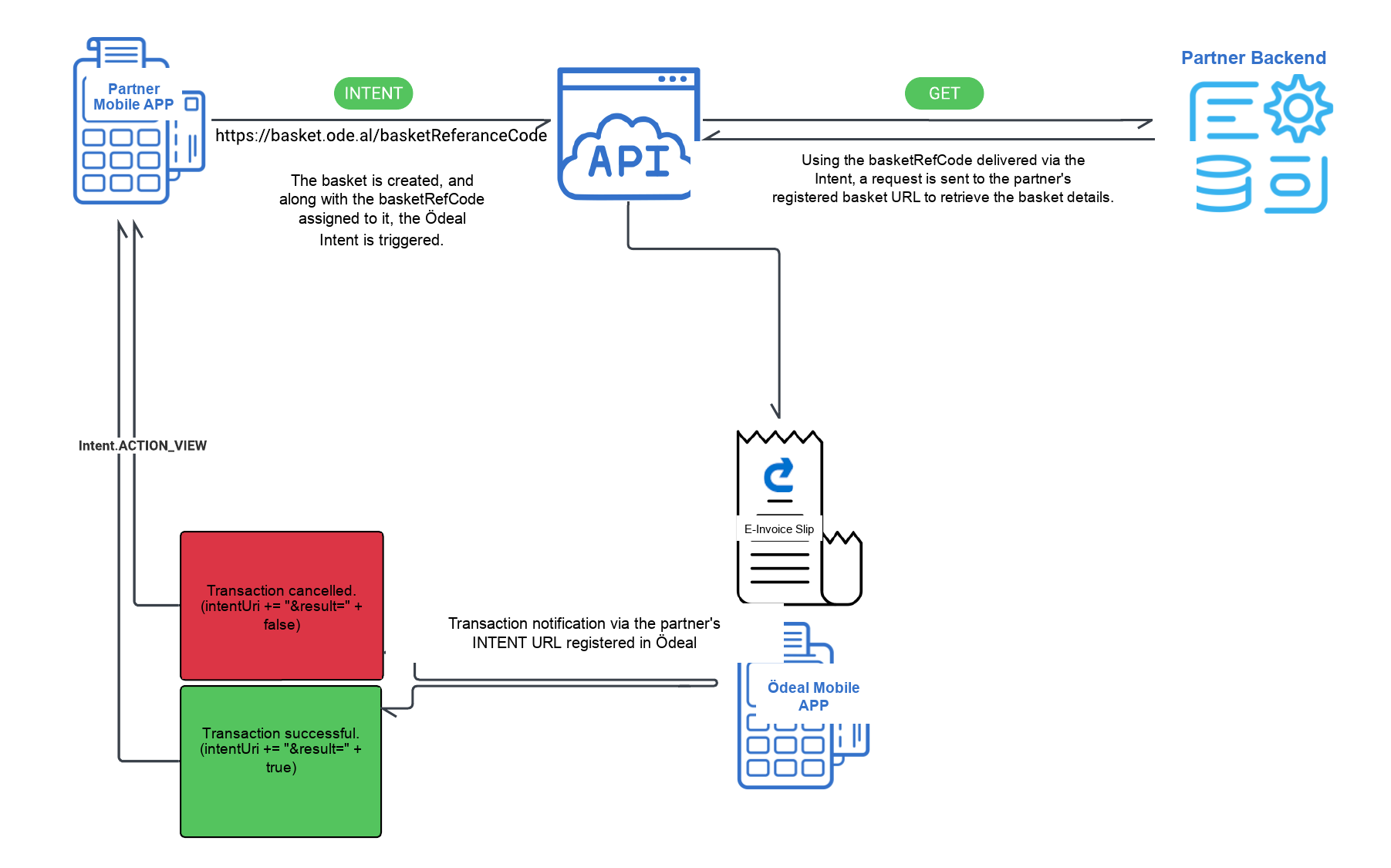
Transferring Product Information Based on the information retrieved from the basket, product details and amounts are transferred to Ödeal.
Determining Invoice Information Based on the information coming from the basket, the invoice information to be used is also communicated to Ödeal at this stage.
At this stage, regardless of the information received from the partner, Ödeal looks up the identity information it has obtained via TODEB and prepares the invoice information based on the returned data. :::
Sending the Payment Transaction to the Bank Based on the retrieved basket details, the payment transaction is sent to the bank via TechPos.
Sending the Payment Result Based on the response received from the bank, Ödeal sends the payment transaction result to the partner's application via the Intent URL exposed by the partner.
E-Document Generation If the transaction is successful, Ödeal starts the e-invoice generation process to prepare the e-document for the transaction. (This may take some time to complete.)
Sending Invoice Information Ödeal sends the generated document to the partner's service URL via the invoice (callback) service exposed by the partner. The partner must define a callback address for invoice information. This URL can also be defined via the configuration method.
Cancellation Flow
IMPORTANT CONDITIONS
- End-of-Day Check: The end of day must not yet have been processed for the transaction
- E-Invoice Status: A transaction cannot be cancelled once an e-invoice has been generated
- Visual Indication: Cancelled transactions are shown in red in the menu